
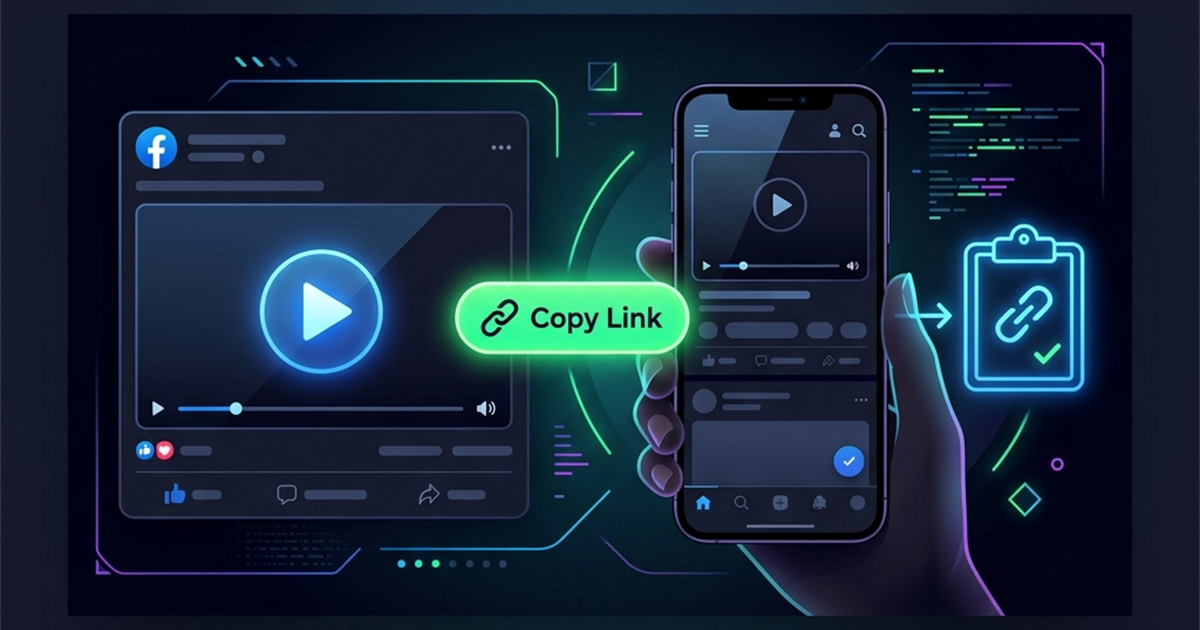
Before you can download or share any video from Facebook, you need its direct URL. While this seems straightforward, Facebook's interface changes constantly, hiding the sharing options depending on whether you are using the mobile app, a desktop browser, or Facebook Lite.
In this tutorial, we will show you exactly how to copy a Facebook video link on any device, including Android, iPhone, and PC. We will also help you identify the difference between a correct video link and incorrect URLs that cause downloaders to fail.
How to Copy a Facebook Video Link on Mobile (App)
If you are using the official Facebook app on an iPhone, iPad, or Android device, follow these steps:
Step 1: Open the Video Post
Make sure you are looking at the specific post containing the video. Tap on the video to open it in full-screen or focus view.
Step 2: Access the Share Menu
- Method A (Share Button): Tap the Share button located in the bottom-right corner of the post.
- Method B (Three Dots Menu): Tap the three-dot menu icon (⋯ or ⋮) in the top-right corner of the post.
Step 3: Copy the URL
- If you tapped the Share button, scroll through the list of sharing options and select Copy Link.
- If you opened the Three Dots menu, select Copy Link from the options list.
- The link is now saved to your device's clipboard, ready to be pasted into the Facebook Video Downloader.
How to Copy a Facebook Video Link on Desktop (PC/Mac)
Copying links on a computer is even simpler, as you have direct access to the web address bar.
Method 1: Use the Web Address Bar
- Click on the video post so it opens in your browser window.
- Ensure the URL in the address bar has
posts,videos, or/watch/in the path. - Click the browser's address bar to highlight the link, right-click, and select Copy (or press
Ctrl + Con Windows /Cmd + Con Mac).
Method 2: Copy from the Video Player Menu
- Right-click anywhere directly on the playing video.
- Select Show video URL from the context menu.
- Copy the URL that appears in the overlay box.
How to Copy Links from Facebook Lite or Mobile Web
If you are browsing Facebook using the lightweight Lite app or a mobile browser:
- Tap the Share option.
- Tap More options or Copy to Clipboard.
- If using mobile web (
m.facebook.com), simply tap your mobile browser's address bar and copy the full URL directly.
Identifying Correct vs. Incorrect Video URLs
To download videos successfully, you need the actual post link. Here is how to tell them apart:
| URL Type | Example Format | Is it correct? |
|---|---|---|
| Direct Video URL | https://www.facebook.com/watch/?v=123456789 |
Yes (Valid) |
| Direct Post URL | https://www.facebook.com/username/posts/123456789 |
Yes (Valid) |
| Shortened Mobile link | https://fb.watch/ab12cd34ef/ |
Yes (Valid redirect) |
| Profile Page URL | https://www.facebook.com/username |
No (Invalid) |
| Facebook Comments link | https://www.facebook.com/permalink.php?comment_id=... |
No (Invalid) |
If you enter an incorrect link format, your downloader may display an error. Learn more about fixing download issues in our troubleshooting guide.
Troubleshooting Link Copying Issues
The "Copy Link" Option is Missing
If you do not see the copy button:
- Solution: Tap Share -> More Options, and select your device's native copy-to-clipboard action. If the video is inside a private group or restricted feed, the share button might be hidden.
The Copied Link Directs to a Profile Instead of the Video
This happens if you copy the link from the author's name or header rather than the post content.
- Solution: Make sure you are interacting with the share button at the bottom of the video, or tap the video player to make it full screen before copying.
Frequently Asked Questions
Can I copy a link to a Facebook Reel?
Yes. Open the Reel, tap the three dots in the corner or tap the Share icon, and select Copy Link. Reel URLs are fully supported.
Does the link contain private info?
Facebook sharing links often contain tracking tags at the end (e.g., ?mibextid=... or &ref=sharing). You can delete everything from the question mark ? onwards, and the link will still work perfectly.
Why does my copied link look different every time?
Facebook uses multiple URL schemas (e.g., fb.watch, facebook.com/watch, or facebook.com/videos). All these formats redirect to the same video file and work in our downloader.